Render
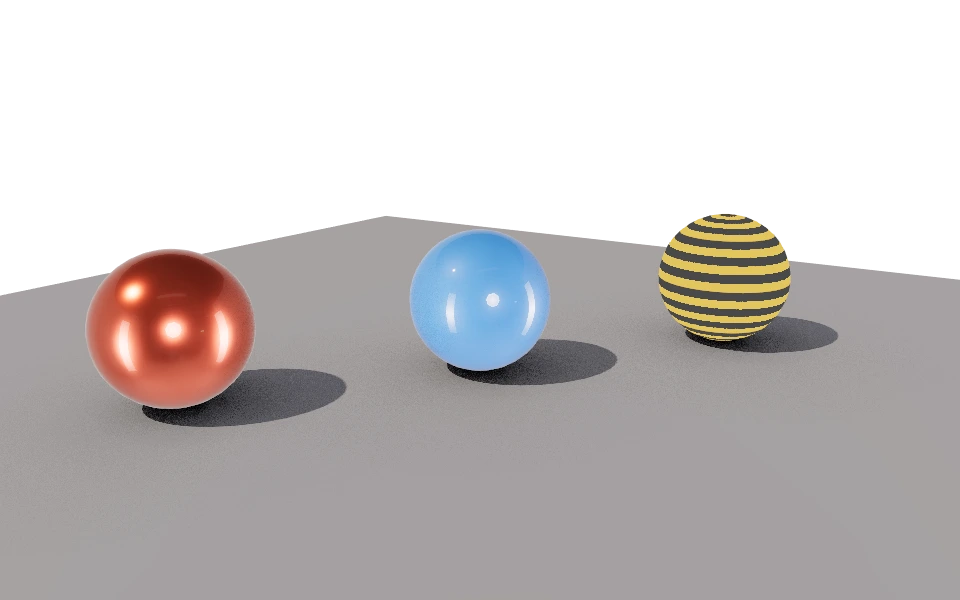
The Render mode draws the scene on the CPU, with no help from the graphics card. It walks the geometry of the project in rectangular buckets spread across the processor cores, and each bucket finishes its samples before it shows up on screen.
While the viewport shows a real time approximation, here every pixel is computed once, with ray traced shadows, indirect light, lens blur and camera effects. This is the image that leaves the editor for a presentation, a store page or a portfolio.
The side panel holds the controls, grouped into sections. Each section has its own page, with the before and after of what it changes. Frame the view and pick the settings; the image only starts with the Render button. The project is copied at that moment: editing objects or touching the controls afterwards does not change the image in progress, only the next one. While it renders the view is locked, and you can pause, resume or cancel at any time. Cancelling keeps the buckets already finished.
Rendering keeps going when you switch modes. You can go back to the editor and keep working while the image comes out, with a ring on the mode button showing the progress, and when you return to the render mode it shows where it got to. Once it stops, moving the camera takes the image away so you can frame again.
Definitions
The panel settings make up a Render definition, saved in the project. A project can hold as many definitions as you want, such as a quick preview and a final version, and the selector at the top of the panel switches between them. Every change to the controls is stored in the chosen definition, and everyone who opens the project sees the same definitions. People who can only view the project are free to switch and experiment, but nothing they change is saved.
Renderer
Each bucket is handed to a worker, a separate line of work that runs on one processor core. With several workers, several buckets are computed at the same time, and the editor stays responsive while the image comes out.
If you want to adjust how this work is divided, open Settings and go to the Renderer tab. Both settings apply to every render made on this computer.
- Workers: How many workers share the buckets, from 0 to 32. At 0 the editor uses one per processor core and leaves one free for the interface. The first worker prepares the project once and the others read the same memory, so raising the number speeds up the image with almost no extra memory.
- Bucket size: The side of the bucket, from 16 to 128 pixels. Small buckets appear sooner and spread the work better across the cores; large ones cut down the chatter between workers. The default of 64 pixels works well on most machines.
Open source
The renderer is open source, published as the @tinypoly/cpu-renderer package. If you want to understand how it works, report a problem or contribute an improvement, the repository is github.com/tinypoly/cpu-renderer.
Menus
File
- Save Frame (PNG): Saves the image with the buckets finished so far, including the transparent background when it is selected.
In this section
- QualitySamples and image resolution.
- EnvironmentThe HDRI image that lights, reflects and can become the background.
- Depth of fieldLens blur, with a focus plane and an aperture, taken from the active camera.
- ShadowsRay traced shadows, from a hard edge to a wide penumbra.
- Global illuminationIndirect light, bounces and color bleeding between surfaces.
- Ambient occlusionDarkens corners and contacts where the ambient light cannot reach.
- FogTints distant surfaces with a color and creates depth.
- VignetteDarkens the edges and pulls the eye to the center.
- Film grainFine noise over the final image, instead of a spotless finish.
- ColorTone mapping and exposure, from the computation to the screen.